
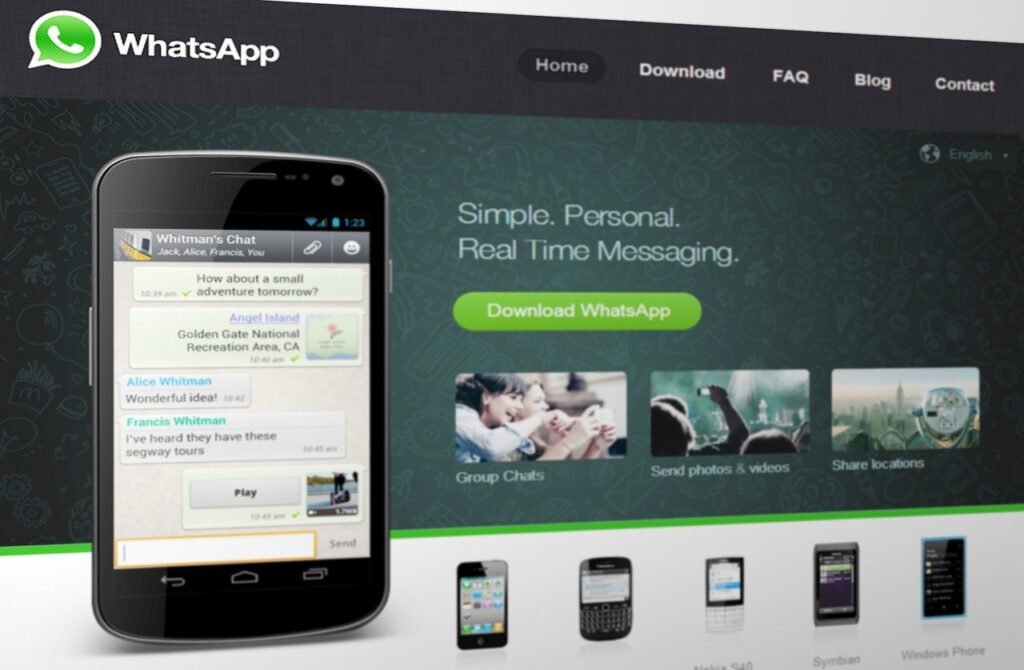
If you want visitors to contact your business quickly, adding WhatsApp to your website can make communication much easier. WhatsApp button Elementor Many people prefer sending a WhatsApp message instead of filling out a contact form or searching for an email address.
If your website is built with Elementor, you can connect WhatsApp without using complicated code. A regular Elementor Button widget is enough to create a direct contact option for your visitors.
In this guide, you’ll learn how to connect WhatsApp to an Elementor website, create the correct WhatsApp link, customize the button, and make sure everything works properly.
Why Add WhatsApp to an Elementor Website?
A website visitor may have a simple question before deciding to contact you. They might want to know your price, available services, delivery details, or how quickly you can complete a project.
For instance, a visitor on your Services page might want to know your pricing before getting started. With a WhatsApp button available, they can contact you instantly instead of searching around the website for your contact information.
This can make the communication process much more convenient and give potential customers an easier way to reach you.
What You Need Before Creating the Button
There isn’t much preparation required. Before you start, make sure you have:
- An active WhatsApp number
- Access to your WordPress dashboard
- Elementor installed on your website
- A page where you want to display the WhatsApp option
Once these are ready, you can start building the button.
Create a WhatsApp Link
The most important part of this setup is the WhatsApp URL.
WhatsApp uses a simple link format that can open a conversation directly:
Replace YourPhoneNumber with your complete WhatsApp number.
For example, if your number is:
8801XXXXXXXXX
Do not add the + sign, spaces, brackets, or hyphens.
Using the correct international format is important because WhatsApp needs the number in a format it can recognize.
Add the Button in Elementor
Now that your WhatsApp link is ready, you can connect it to a button on your website.
Step 1: Open Your Page
Log in to your WordPress dashboard and open the page where you want the WhatsApp button to appear.
Click Edit with Elementor to launch the Elementor editor.
You can add the button to your homepage, Services page, Contact page, or any other section where visitors may need to reach you.
Step 2: Insert a Button Widget
Inside Elementor, search for the Button widget.
Drag it into the section where you want visitors to see the WhatsApp contact option.
You don’t need a separate WhatsApp plugin just to create a basic button. The standard Elementor button can handle the link.
Step 3: Add Your WhatsApp URL
Select the button and look for the Link field in the button settings.
Paste your WhatsApp URL there.
For example:
Now, when someone clicks the button, their device can open WhatsApp and start a conversation with your number.
Choose the Right Button Text
The text on your button should make its purpose obvious.
Instead of using a generic label such as Click Here, try something more specific.
Some options include:
- Chat With Us on WhatsApp
- Message Us on WhatsApp
- Contact Us on WhatsApp
- Talk to Us
- Ask Us on WhatsApp
- Get in Touch on WhatsApp
Choose a short phrase that matches the tone of your website.
For a business website, Chat With Us on WhatsApp is a simple and clear option.
Add a WhatsApp Icon
An icon can make the button easier to recognize at a glance.
In the Elementor button settings, you can check the icon option and search for a WhatsApp icon if it is available in your setup.
You can place the icon before the button text so visitors can immediately understand that the button opens WhatsApp.
Keep the design simple. You don’t need to add multiple icons or decorative elements to make the button noticeable.
Add a Pre-Written WhatsApp Message
You can make the experience even easier by creating a link that opens WhatsApp with a suggested message.
When the visitor opens the chat, the message will already be prepared in the message box.
This can be useful for businesses that receive similar questions from customers.
You could use a message such as:
Hello, I would like to know more about your services and pricing.
This saves the visitor from having to decide what to write before starting the conversation.
Where Should You Place the WhatsApp Button?
The button doesn’t have to appear in only one location.
Think about the points where a visitor may naturally want to ask a question.
Good locations include:
Services Page
Visitors may want additional information about your services, pricing, or packages.
Homepage
A WhatsApp button on the homepage gives new visitors a quick way to contact you.
Contact Page
Adding WhatsApp alongside your email address and contact form gives people another communication option.
Call-to-Action Section
You can also place the button near the end of an important section, especially after explaining your services.
The goal isn’t to place the button everywhere. Instead, position it where contacting you feels like the natural next step.
Make the Button Mobile-Friendly
A large portion of website visitors may access your website from smartphones. Since WhatsApp is primarily used on mobile devices, checking the button on smaller screens is especially important.
After designing the button in Elementor, switch to the responsive preview and check how it looks on mobile.
Make sure:
- The text is easy to read
- The button isn’t too wide
- The button doesn’t overlap other elements
- There is enough space around it
- The link is easy to tap
A visitor shouldn’t have to zoom in or struggle to press the button.
Test the WhatsApp Button
Before publishing your changes, test the link yourself.
Click the button from the Elementor preview and check whether WhatsApp opens correctly.
If it doesn’t work, review the phone number and URL carefully. A small mistake in the number, such as adding spaces or using the wrong country format, can prevent the link from working properly.
It’s also a good idea to test the button from a mobile device after publishing the page.
Do You Need a WhatsApp Plugin?
For a simple WhatsApp contact button, you usually don’t need an additional plugin.
Elementor’s Button widget can be connected directly to a WhatsApp URL. This keeps the setup simple and avoids installing another plugin just for one basic function.
However, if you want advanced features such as floating WhatsApp buttons, multiple agents, analytics, automated messages, or more customization, a dedicated plugin may offer additional options.
For a normal contact button, Elementor is often enough.
Final Thoughts
Connecting WhatsApp to your Elementor website is a straightforward way to give visitors another method of contacting your business.
You can create the link, place it inside an Elementor Button widget, choose a clear label, add an icon, and customize the design to match your website.
Most importantly, remember to test the button on both desktop and mobile before considering the setup finished.
A simple WhatsApp contact option can remove unnecessary steps and make it easier for interested visitors to start a conversation with you.